Surveying and Navigation with Waypoints
This section presents the main waypoint management and navigation functionalities available in GPS Waypoints Lite, including creating, viewing, importing, exporting, and navigating to geographic points.
You can collect points in the field during a surveying activity and build a personal or business geographic database. The collected points can be shared directly with other applications (e.g., Dropbox or Google Drive), which is the most convenient option. They can also be exported to your device’s internal storage. After exporting, the data can be viewed and processed using geospatial tools such as Google Earth.
Add and view waypoints
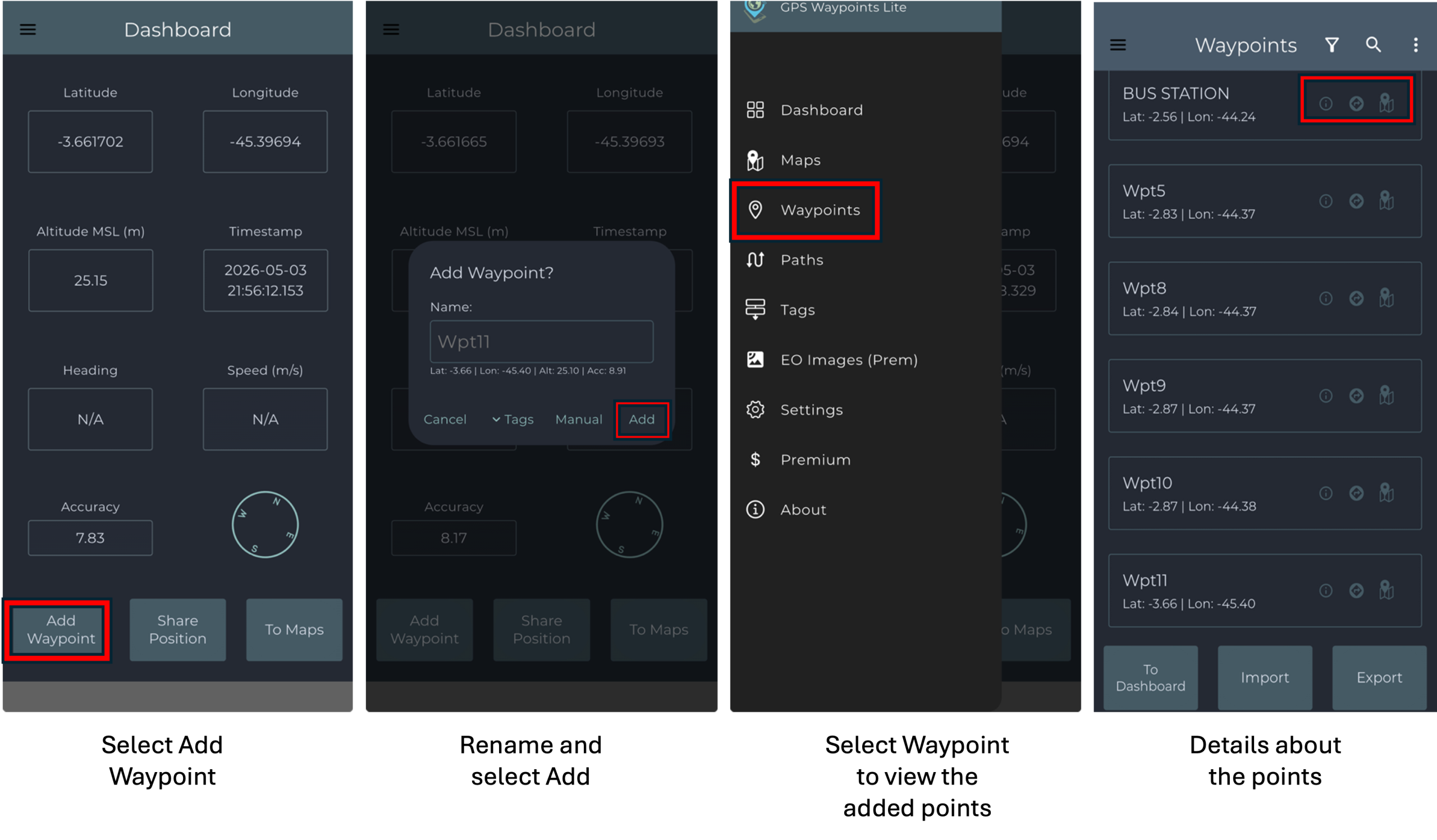
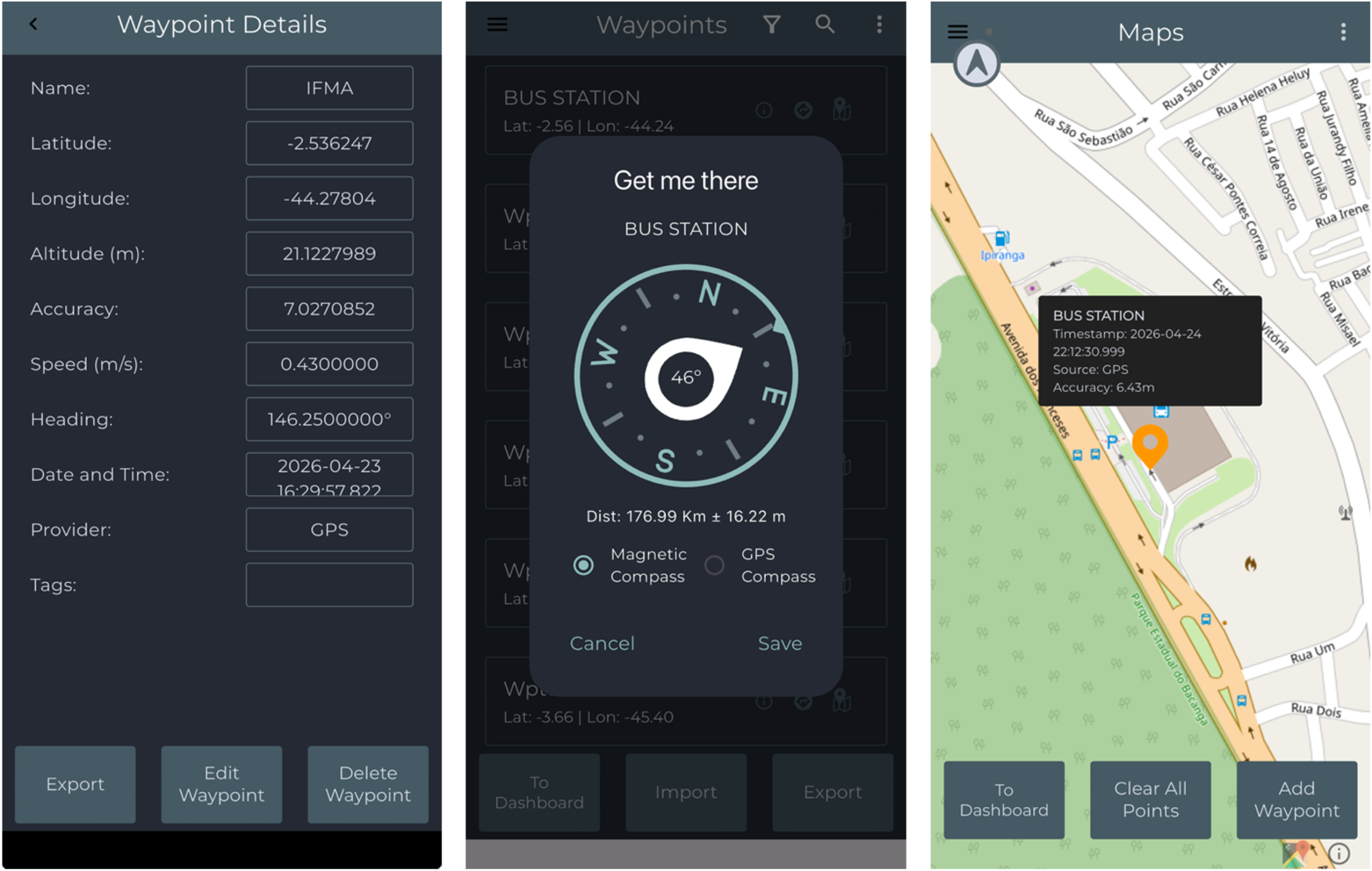
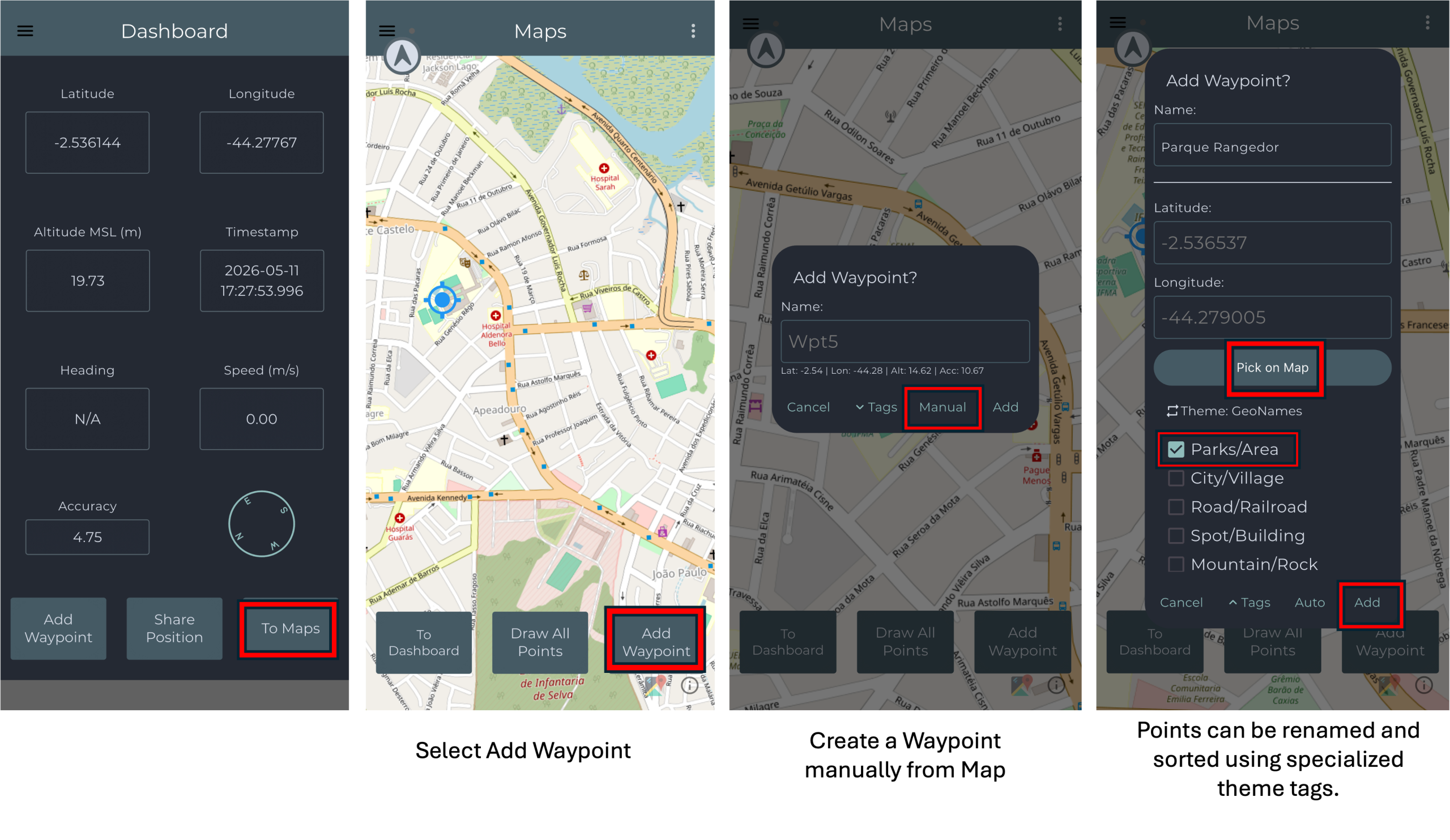
To add and view points in the application, first access the dashboard, which is displayed by default when the app is opened, and select the Add Waypoint option. On the confirmation screen, you may rename the point if desired and then select Add to save it. To access the list of added points, open the navigation menu by selecting the hamburger button located in the upper-left corner of the screen and then select Waypoints. In the Waypoints screen, you can view detailed information about each point, obtain directions for navigation, and display the point on the map.
Add waypoints from map
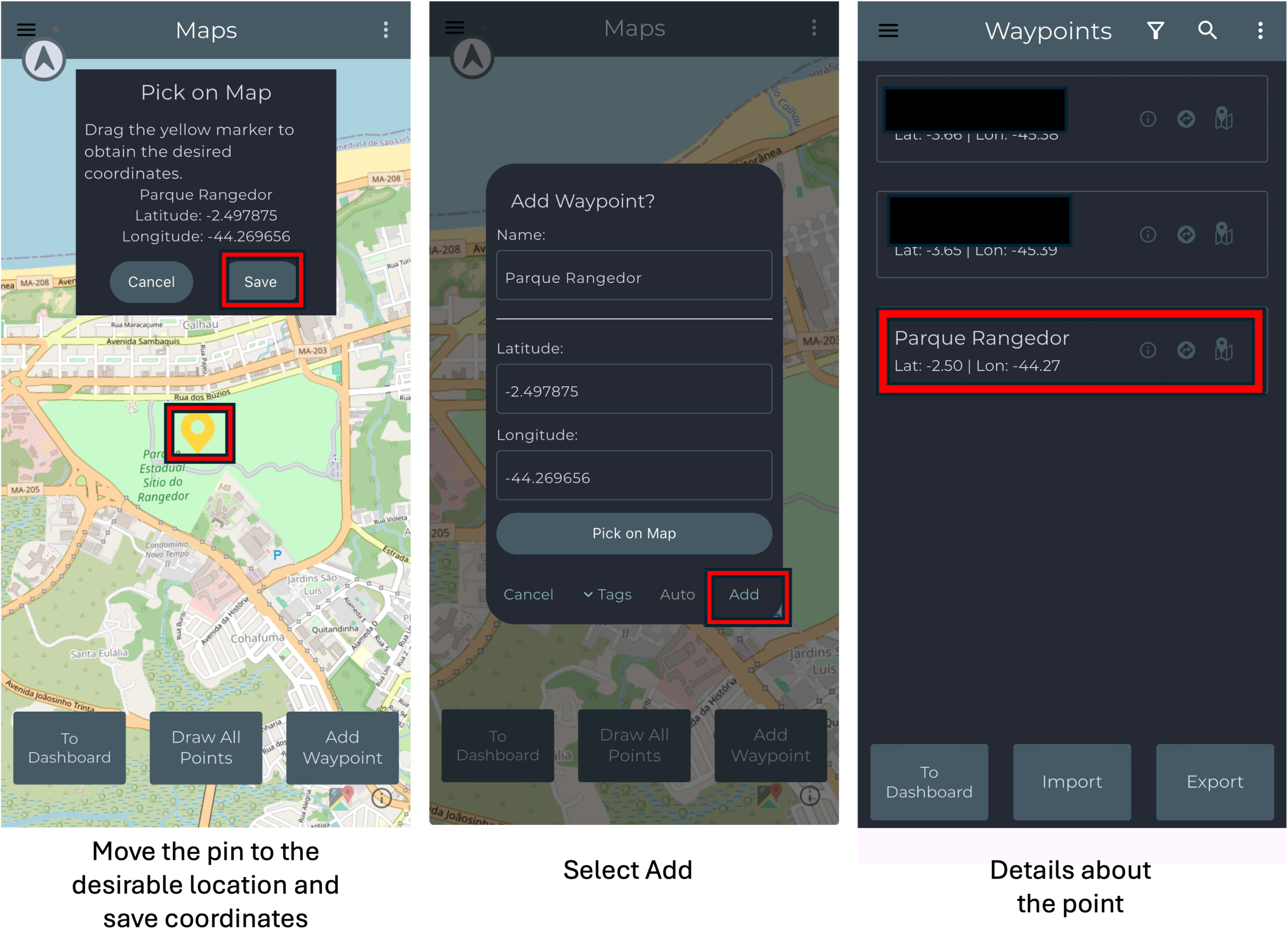
Waypoints can be manually created directly from the map by selecting a desired location and saving it to the application database. From the main screen, select To Maps and choose the Add Waypoint option to create a new point. Move the pin on the map to the desired location and save the displayed coordinates. Then, enter a name for the location and select Add to store the new waypoint. Once saved, the point will appear in the list of registered waypoints, and the application can be used to obtain directions and navigate to the selected location.
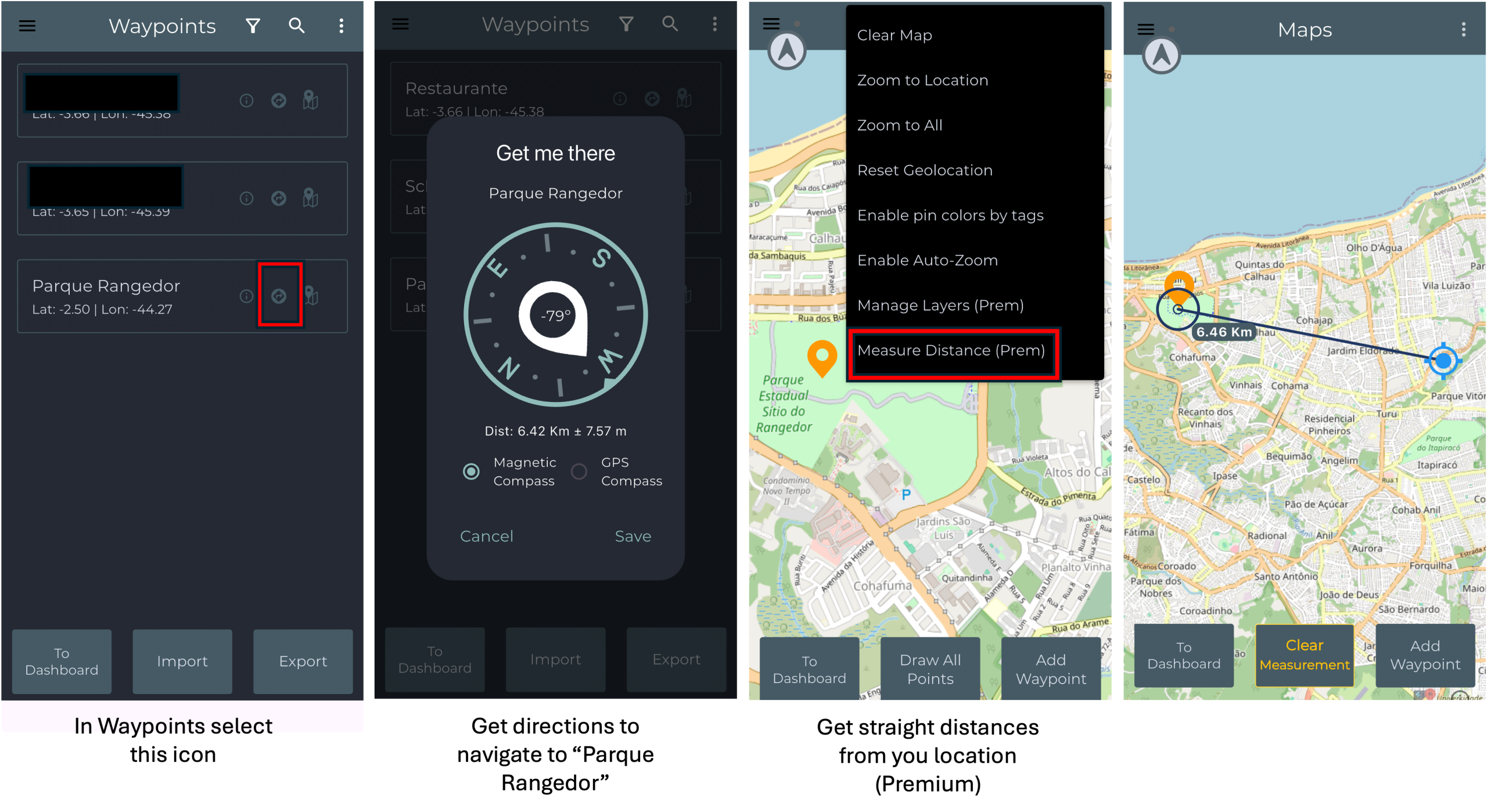
Find the way to a point and measure distances
It provides the base navigation for finding Points, such as getting direction to go back home. It also provides means to check straight distances from your current location.
Import a set of points
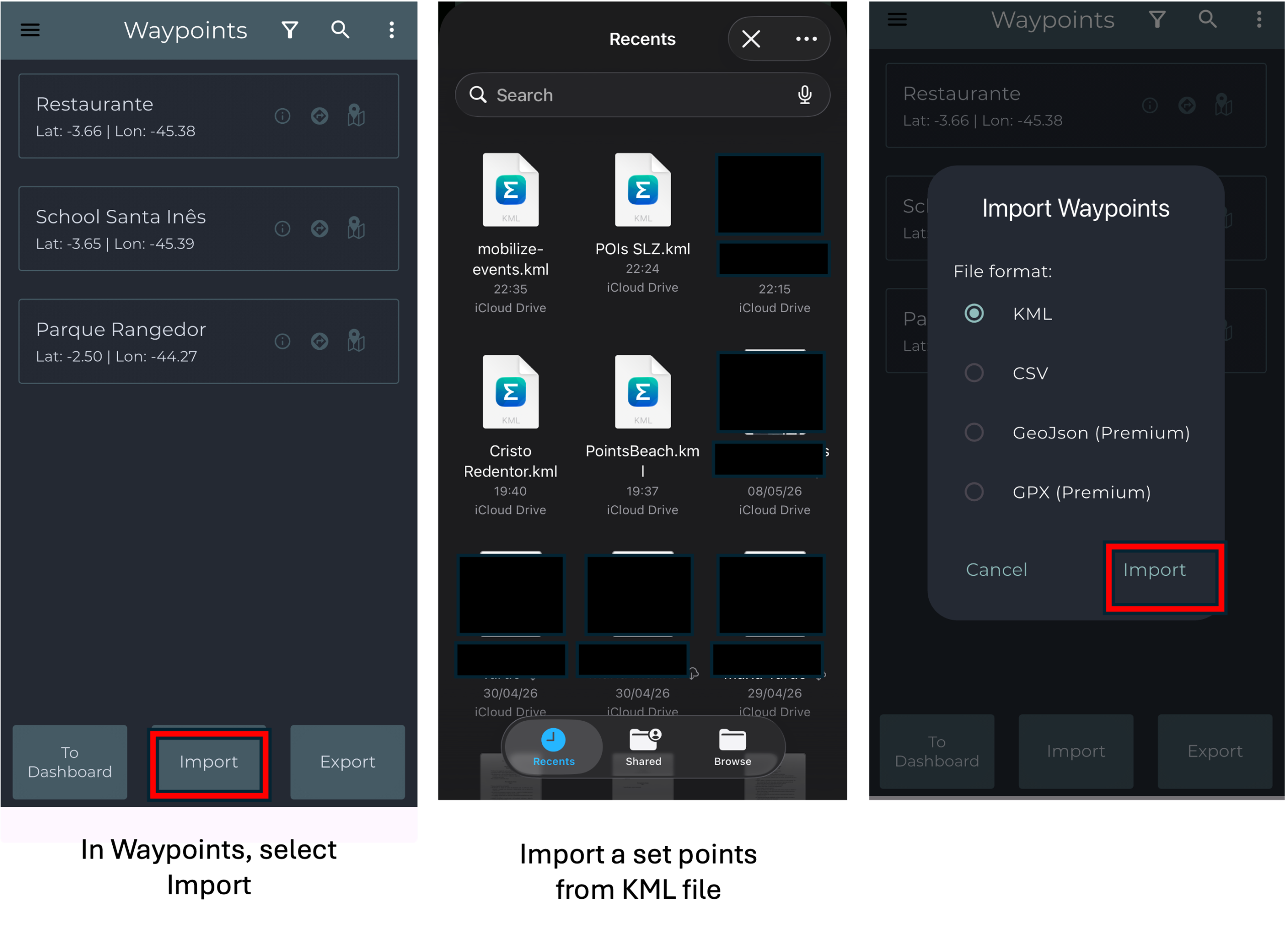
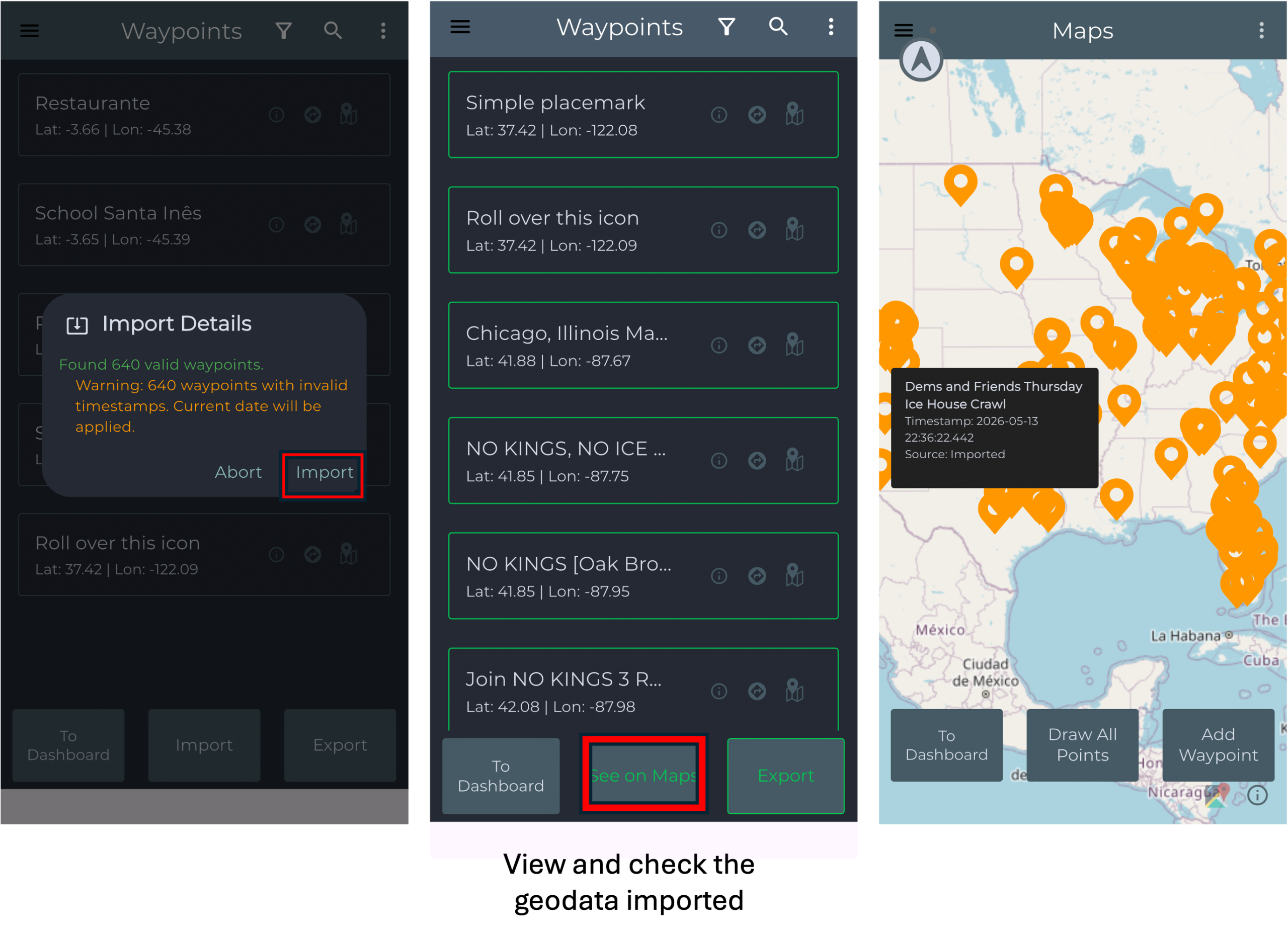
To import a set of points from a survey, first obtain a valid KML file and transfer it to your mobile device using a method such as AirDrop, e-mail, Google Drive, or cloud storage services. After the file is available on the smartphone, open the application and access the Import option from the main menu. Select the KML format and browse the device storage to locate the transferred file. Once selected, the application will validate the waypoints and automatically load the imported points, making them available for visualization, navigation, and map exploration.
Export waypoints
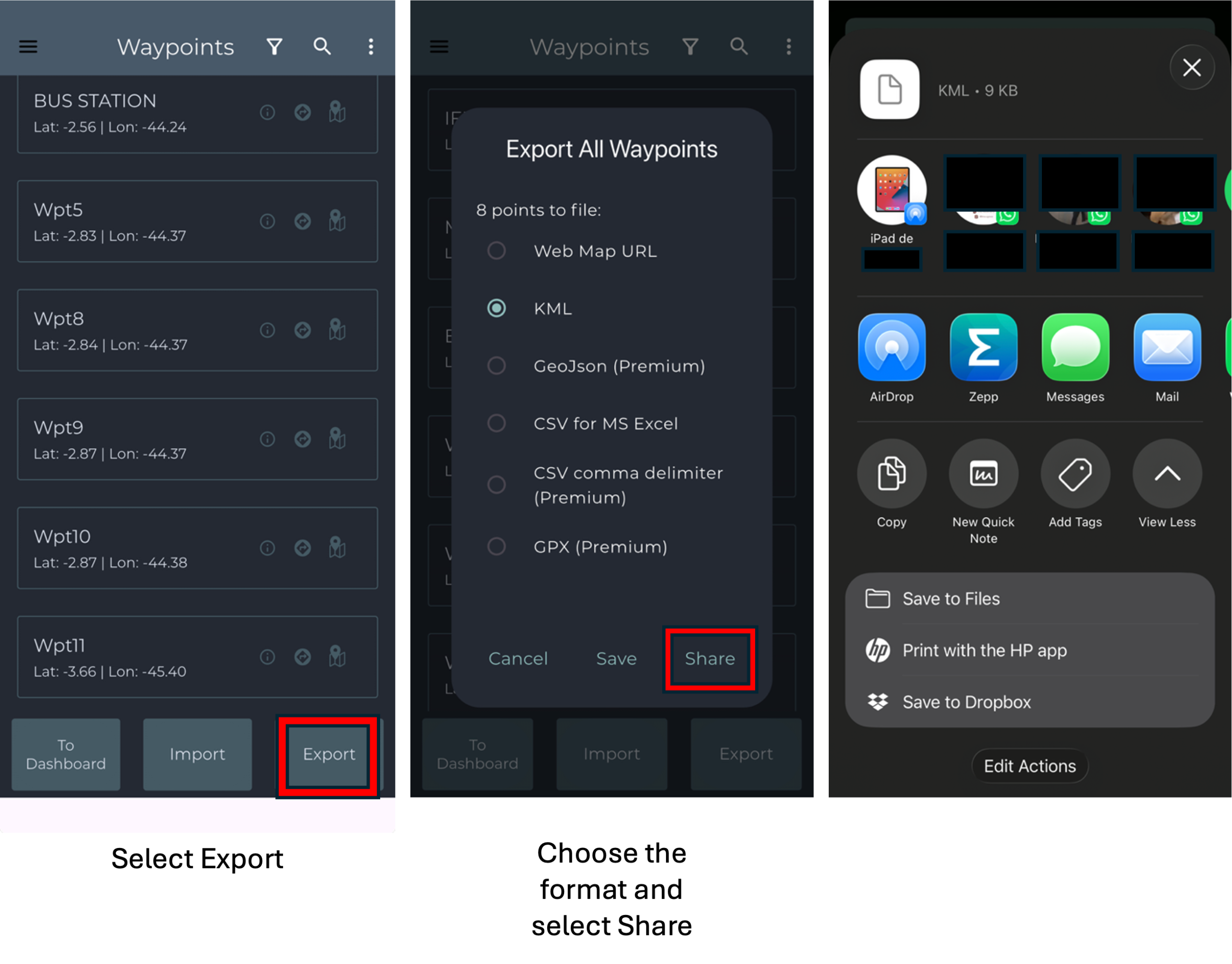
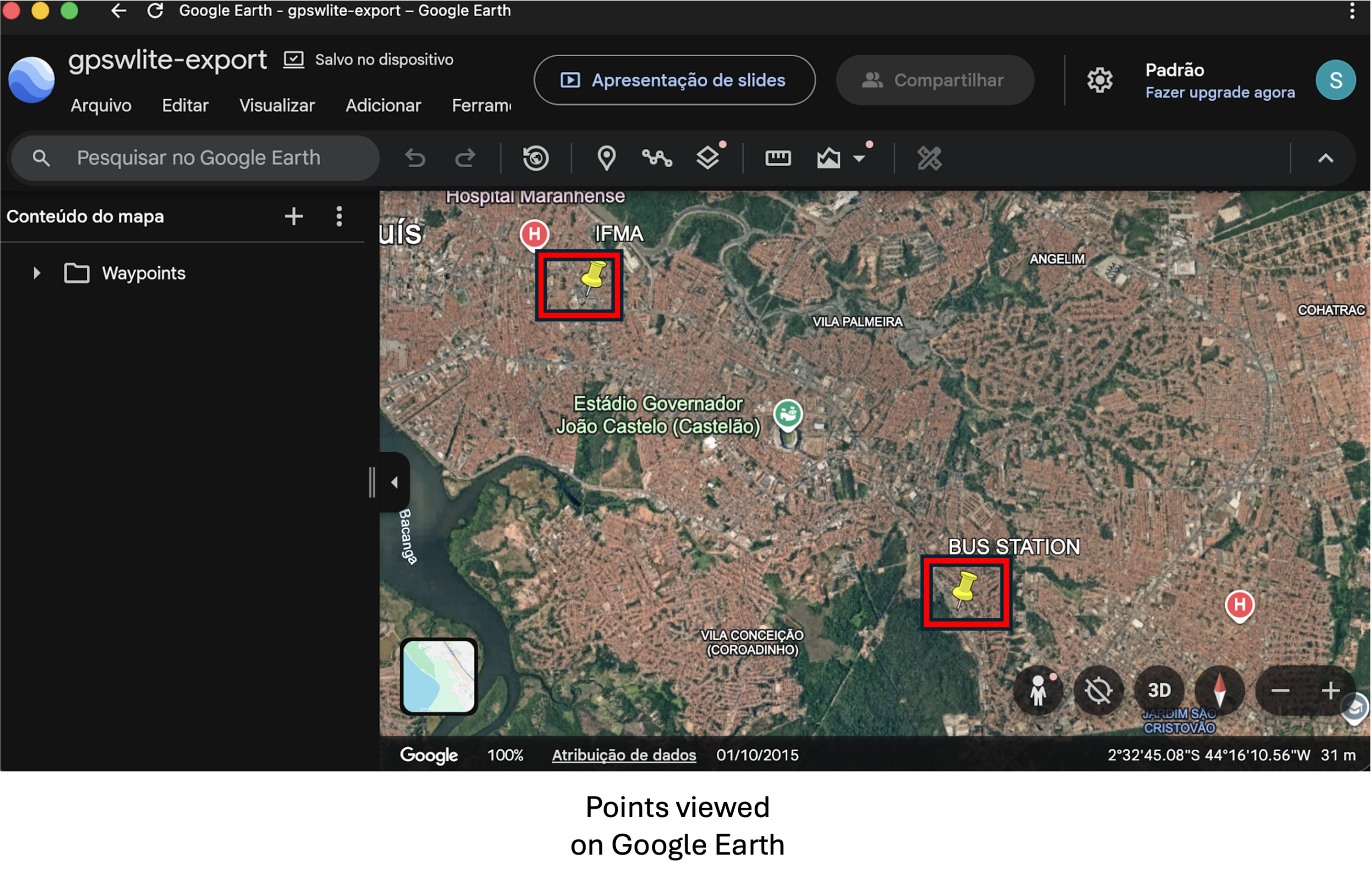
To export a file in Waypoints, first select the export option with in the application. Then, choose the desired file format and tap the share option. Finally, save the file to your device’s internal storage or share it through another application available on your device. After obtaining the exported data, you can view and process it with any geospatial tool, such as Google Earth, for the general public.