Add Manual Path and Export
A path can be constructed from an ordered sequence of points by manually triggering the acquisition of each point.
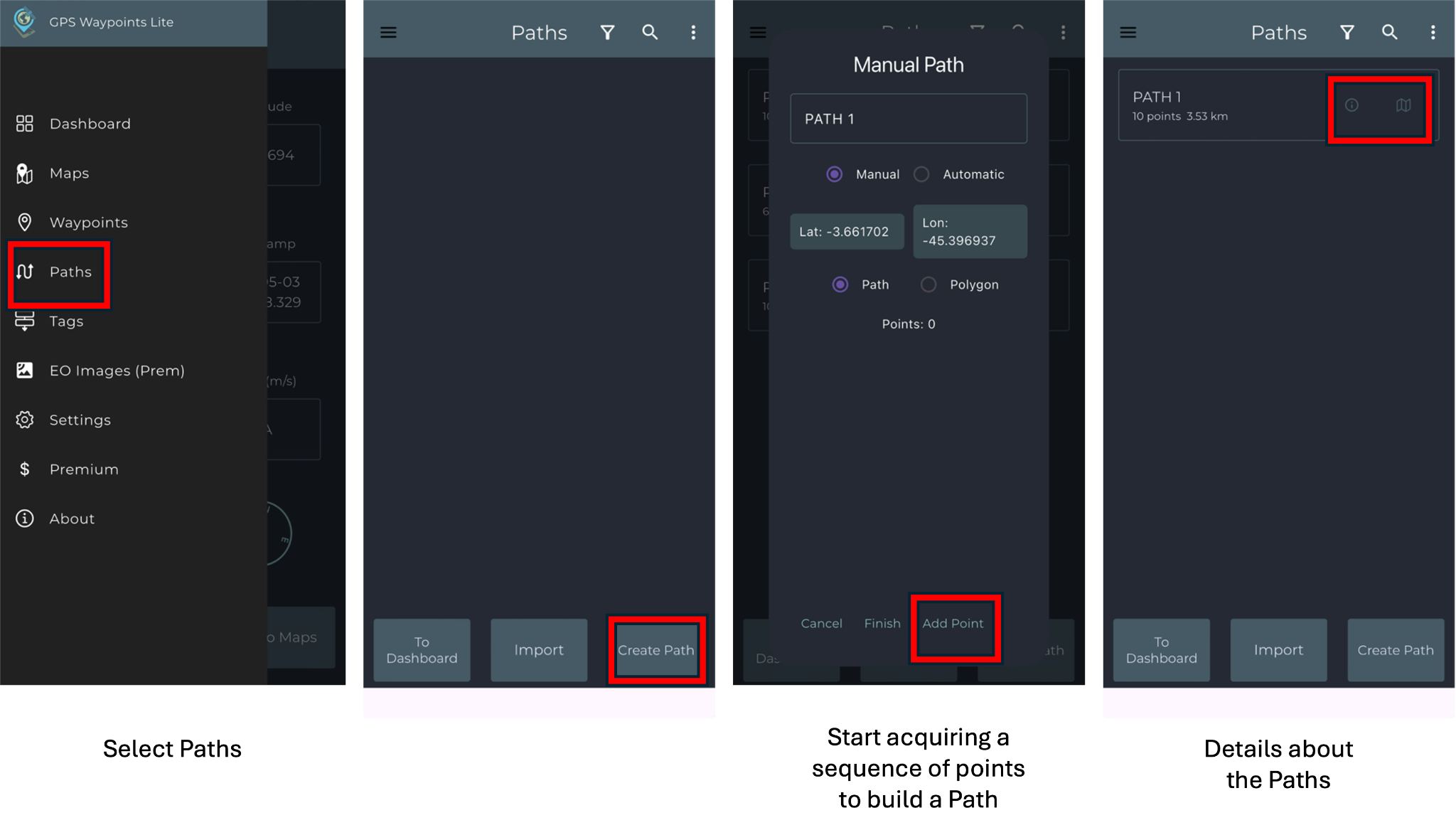
To create a path in the application, open the main menu and select the Paths option. The points can be added by selecting Add Point. Continue adding points until the path is completed. After creating the path, additional details and its visualization on the map can be accessed through the highlighted icons on the screen. To export the path, open the kebab menu located in the upper-right corner of the screen and select Export All. Then, choose the desired file format and tap the share option. The file can be shared by saving it to your device’s internal storage or through another application. The exported path can also be visualized using Google Earth.
Add Automatic Path
This feature allows tracking moving activities such as cycling, running, driving, or flying by automatically building an ordered sequence of Points (Path).
To create a path automatically, select the Automatic option so that points are added according to the defined time interval. Then, select Start to begin recording the path and Finish to end it after collecting the points. Once the path is completed, additional details and its visualization on the map can be accessed through the highlighted icons on the screen. Map control options are available in the menu located in the upper-right corner of the screen, where functions such as clearing the map, adjusting zoom levels, resetting geolocation, and accessing additional settings can be found.